Shadowrocket Setup Guide
Start with your existing connection details and follow the steps to import them, choose a routing mode, connect, and verify the result.
This guide focuses on iPhone and iPad. Screenshots are official App Store assets; available options and their locations may vary, so refer to what appears in the app. For your first setup, get one connection working before adjusting rules or automatic connection settings.
01 Add a Server or Import a Subscription
First, identify whether you have individual server details or a subscription URL that updates a server list.
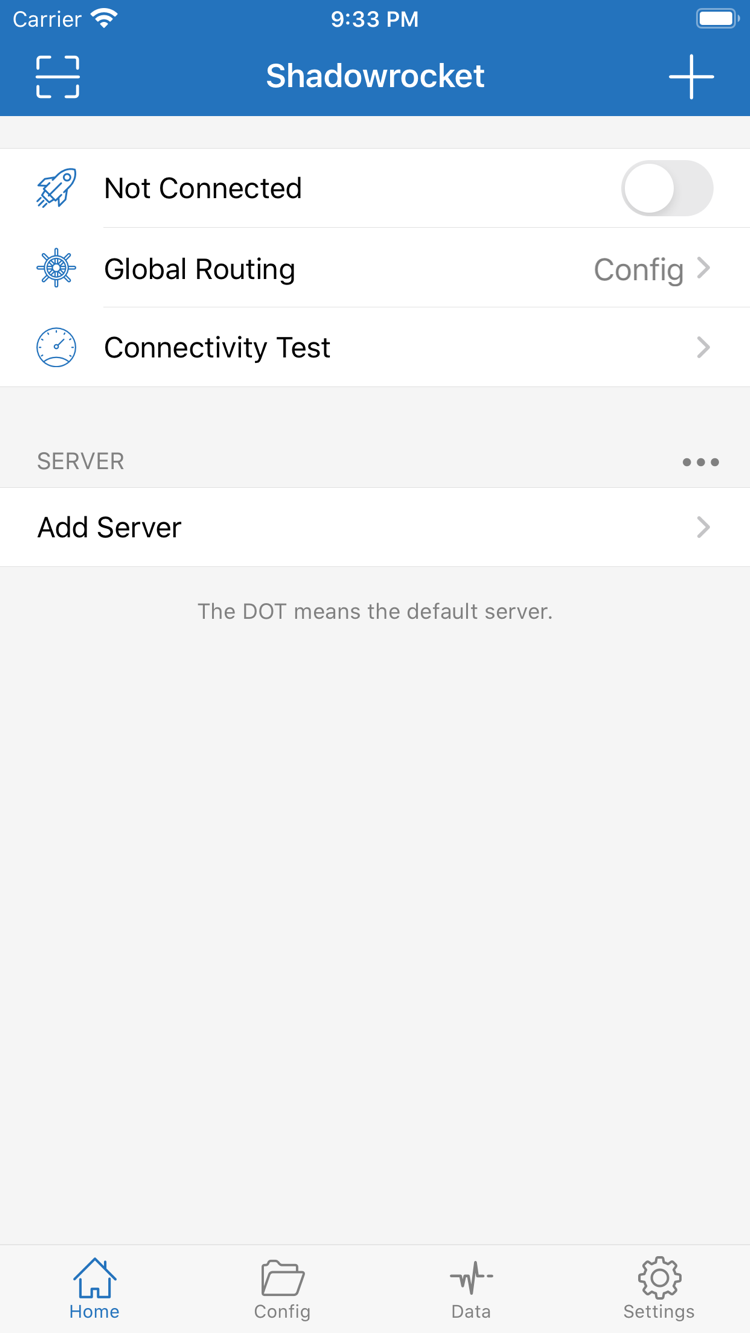
After opening Shadowrocket, go to Home and find Add Server near the SERVER section, or use the add button on the page. Leave the connection switch at the top off for now: first, save your connection details accurately. A single share link, subscription URL, and configuration file serve different purposes, so do not use the same import option for all three just because each is a text string.
Have server details? Use Add Server
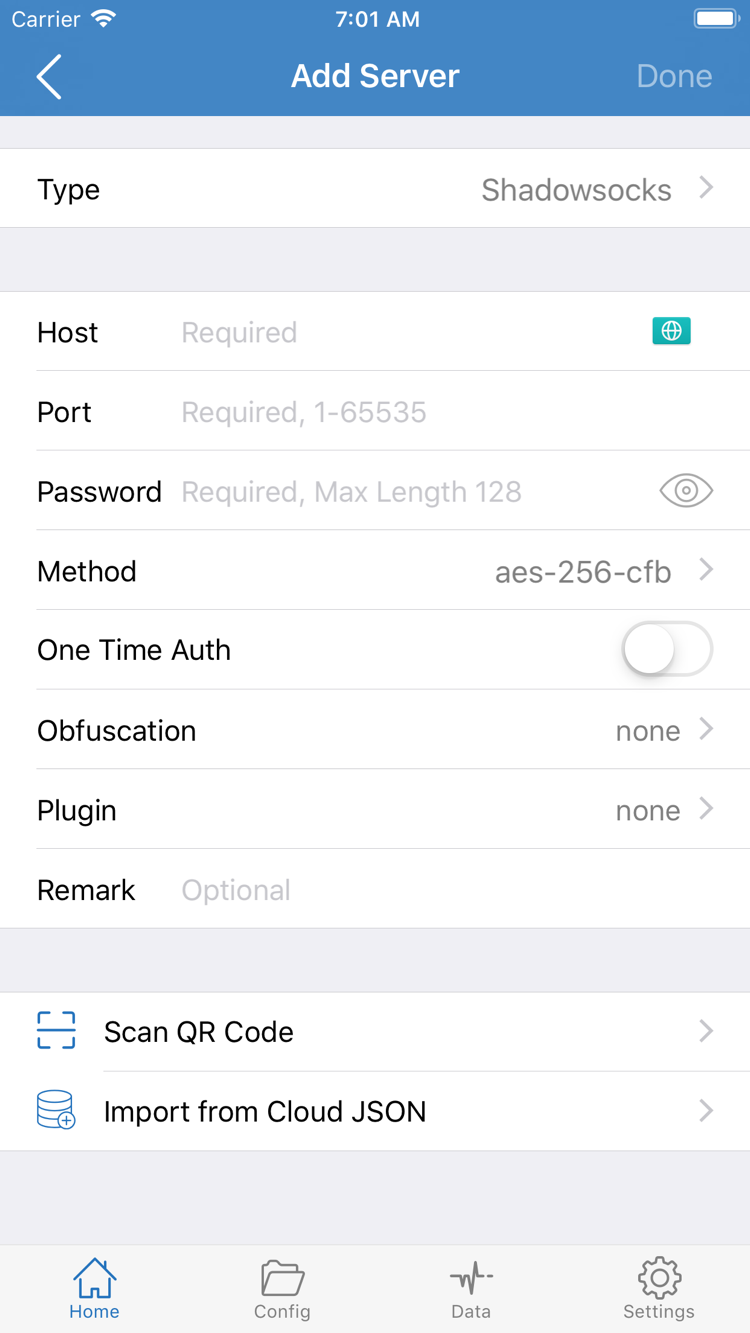
In Add Server, first select a Type that matches the protocol in your connection details, such as Shadowsocks, VMess, VLESS, or Trojan. Don’t guess based on a similar name. The form displays fields for the selected protocol. Enter Host, Port, and any required authentication details exactly as provided. The screenshot shows one form with Password and Method; other Types may use different fields.
Check each field carefully. Enter only the server address required in Host; do not paste an entire web address there. Use the provided Port without changing it. Match Password, Method, and any protocol-specific transport or security settings to your connection details. Leave optional fields at their defaults if no value was provided, and don’t combine examples from different protocols. Save, return to Home, and confirm the new item appears under SERVER.
Have a subscription URL? Choose Subscribe
If you have a subscription URL that updates a server list, set Type to Subscribe in Add Server, then enter the complete URL in the corresponding URL field. Confirm, save, and wait for it to load. Keep all query parameters and check for missing characters or accidental spaces at either end. Subscription URLs often contain access credentials, so treat them like passwords; don’t post them publicly or include them in screenshots. A server subscription retrieves or updates a server list; it is not a rules configuration file in Config.
If your connection details are provided as a QR code, use Scan QR Code to read it. Use Import from Cloud JSON only if you have content in the corresponding format. After importing, verify the Type and key fields; reading text successfully does not mean the parameters are correct. Check that the list contains an item, then select the server you plan to test. If the list is empty, check the URL and import result in Troubleshooting before toggling the connection switch.
02 Choose Global Routing
The server determines the connection destination; Global Routing determines how requests are handled.
Once you have a server to select, return to Home and tap Global Routing. This is separate from selecting an item in the SERVER list: choosing a server does not mean every request will use it. Before your first test, understand the three modes and decide what you want to check. This helps avoid assuming something is broken when the result simply differs from what you expected.
Config: Follow the active configuration
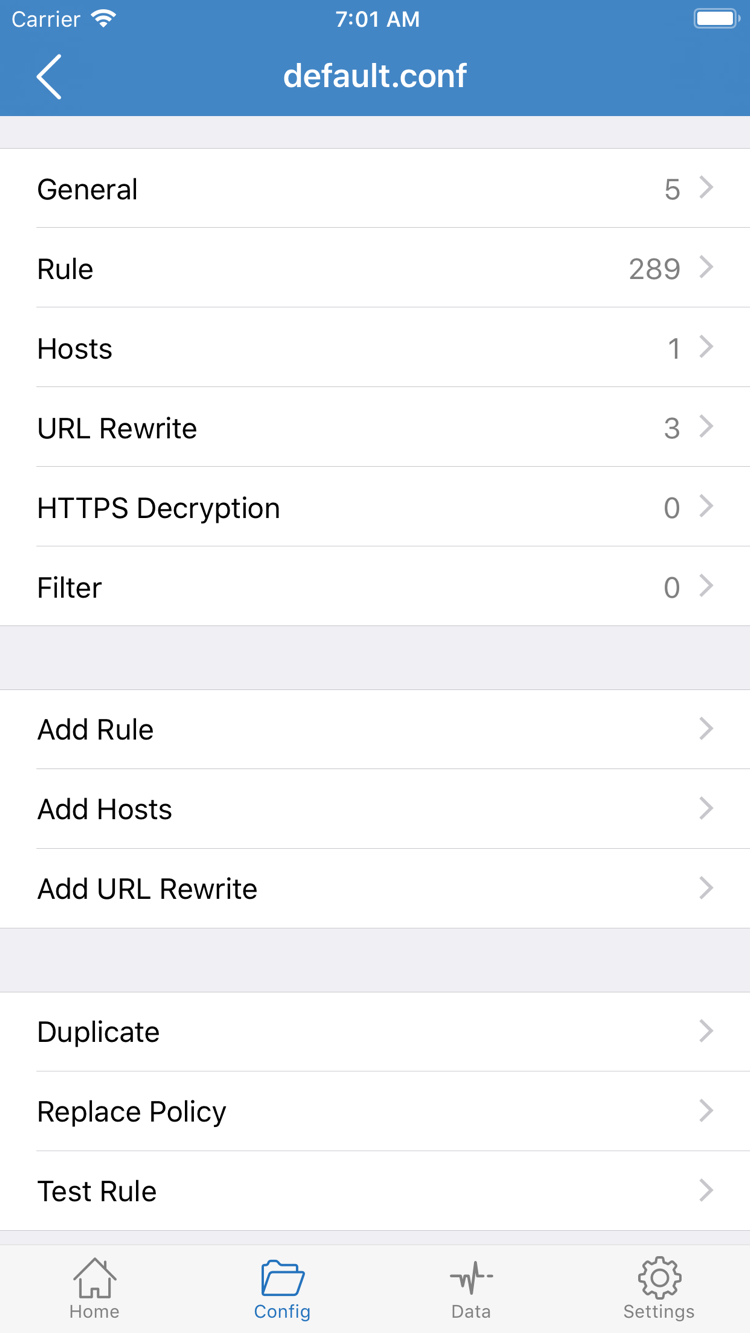
Config uses the active configuration file’s rules to determine where requests go. Rules may send some requests to PROXY, others to DIRECT, or reject specific connections with REJECT. So if a request connects directly in Config mode, that does not necessarily indicate a problem; it may be what the rules specify. Open Config at the bottom of the screen and confirm which configuration file is active. To inspect it, review sections such as General, Rule, Hosts, and URL Rewrite.
The screenshot shows the configuration editor, where Add Rule adds a rule. You do not need to write a large set of rules to make your first connection. First confirm the configuration’s source and contents, and save a copy you can restore before making changes. Don’t overwrite an existing configuration wholesale unless you understand its purpose. Pay particular attention to rule order and the final FINAL rule; a rule’s name alone is rarely enough to tell how a request will be handled.
Proxy and Direct: Use them for comparison
Proxy switches global routing to proxy mode, which can temporarily help isolate the effect of rule-based routing during a test. It won’t fix an incorrect server address, authentication details, or transport settings. Direct uses a direct connection and cannot be used to verify that a proxy server works. Consider both modes in the context of your current network; they are not switches that guarantee a successful connection.
If you already have a rules configuration you know works, choose Config for everyday use. To check whether a newly added server is reachable, temporarily choose Proxy for comparison. After testing, return to Global Routing and restore the mode you need. For more on rule types, PROXY / DIRECT / REJECT policies, and first-match behavior, see the Rules Manual. This page focuses on making your first connection, not advanced rule editing.
03 Connect and authorize the system prompt
Select a server, respond to the system prompt, then check the connection status in the app.
Return to Home and confirm that the item you just prepared is selected under SERVER. Then check Global Routing. If your subscription contains several items, use one with complete, known parameters for your first test and note its name. There is no need to switch rapidly between multiple items. Keeping the test conditions consistent makes it easier to tell whether you are checking the same connection or changing the test.
Turn on the connection switch at the top of Home. When disconnected, the screen may show Not Connected. After turning it on, check that the status actually changes; don’t rely on the switch alone. The first time you connect, the system may ask permission to let Shadowrocket add a VPN configuration. This authorization allows the app to manage connections through the system’s network extension. It is not a purchase confirmation and will not supply missing server details.
Check the app name in the prompt, then follow the system instructions to allow the configuration and complete any device verification. If you previously denied authorization, start the connection again in the app and follow the system prompts. Don’t change unrelated system settings to bypass the prompt. System wording and verification steps may vary with device settings; follow what appears on your screen.
When finished, return to Home and check whether the connection remains active. Permission to add a VPN configuration and successful access to a remote server are two separate checks. Even if the system shows a connection, server authentication may fail, the destination may be unreachable, or the rules may not behave as expected. Verify with an actual request before drawing conclusions from the system status alone.
During your first setup, keep the connection flow under manual control. If automatic connection settings are enabled, the connection may turn back on after you switch it off during testing, making it seem like the switch is not working. Check On Demand in Settings if needed; there is no need to enable it for your first connection before understanding its triggers. Keep your current selections unchanged for now and continue to the verification steps below.
04 Verify the connection and routing results
Check in this order: app status → test result → actual access.
Once connected, run Connectivity Test in Home. The result reflects connectivity under the current test method; it does not mean every website, protocol, or request will work. A timeout does not immediately mean your subscription has expired: the test method, destination, and current network can all affect the result. Note what happened, then test actual access.
Open a browser and visit a page you know is normally available and relevant to your test. Use a newly opened page or reload it to avoid mistaking cached content for a successful new connection. First check whether the page loads fully, then check specific resources or actions. Seeing text on a page does not mean its images, videos, or other requests use the same route.
If you are using Config, check which rule in the active configuration should match the destination and whether it is expected to use PROXY or DIRECT. A page loading does not prove that the proxy is working; the destination may normally use DIRECT. To test the selected server itself, temporarily switch to Proxy and retry the same destination with the same server. Restore Config after testing.
Change only one condition at a time when comparing results. For example, keep the server the same and change only Global Routing, or keep the mode the same and select one different item from your existing servers. Changing the server, rewriting the configuration, and switching networks all at once makes it difficult to identify the cause of a success or failure. If comparing Wi-Fi with cellular data, record each result separately rather than treating tests under different conditions as equivalent.
05 Troubleshoot one issue at a time
Start with the earliest point where something went wrong, and check one layer at a time.
No server listed? Check the import
If SERVER is still empty after saving, first check whether you entered a server subscription URL, a single share link, or a rules configuration URL. Make sure the input type matches the option you used, then check that the URL is complete, has no extra line breaks, and could be retrieved over your network. The content returned by a subscription, its validity, and any access restrictions must be checked with the provider of the details you already have. Repeatedly toggling the connection switch will not fix an import failure. Keep your original details before importing again so you have something to compare against.
Server listed but not working? Check the details and test method
For manually entered servers, compare Type, Host, Port, and authentication details one by one, then check the required transport and security settings for that protocol. For imported servers, first confirm that the subscription updated successfully; don’t change a large number of fields if you are unsure what they do. In Settings, check Test Method to understand how the current test is performed. Results from different test methods are not directly comparable, and no single result should be treated as a definitive verdict on every connection.
Connected, but access is unexpected? Check the mode and rules
Return to Home and check Global Routing. Is it still set to Direct, or do the rules in Config send the destination to DIRECT? If access works temporarily in Proxy but not as expected in Config, focus on the active configuration, rule order, and policy references rather than importing the same server again. If both modes fail, check the server, your current network, and whether the destination is available. Investigate DNS issues in light of the specific error; don’t change every DNS setting just because a page won’t load.
Connection turns back on or diagnostics are unclear? Check Settings
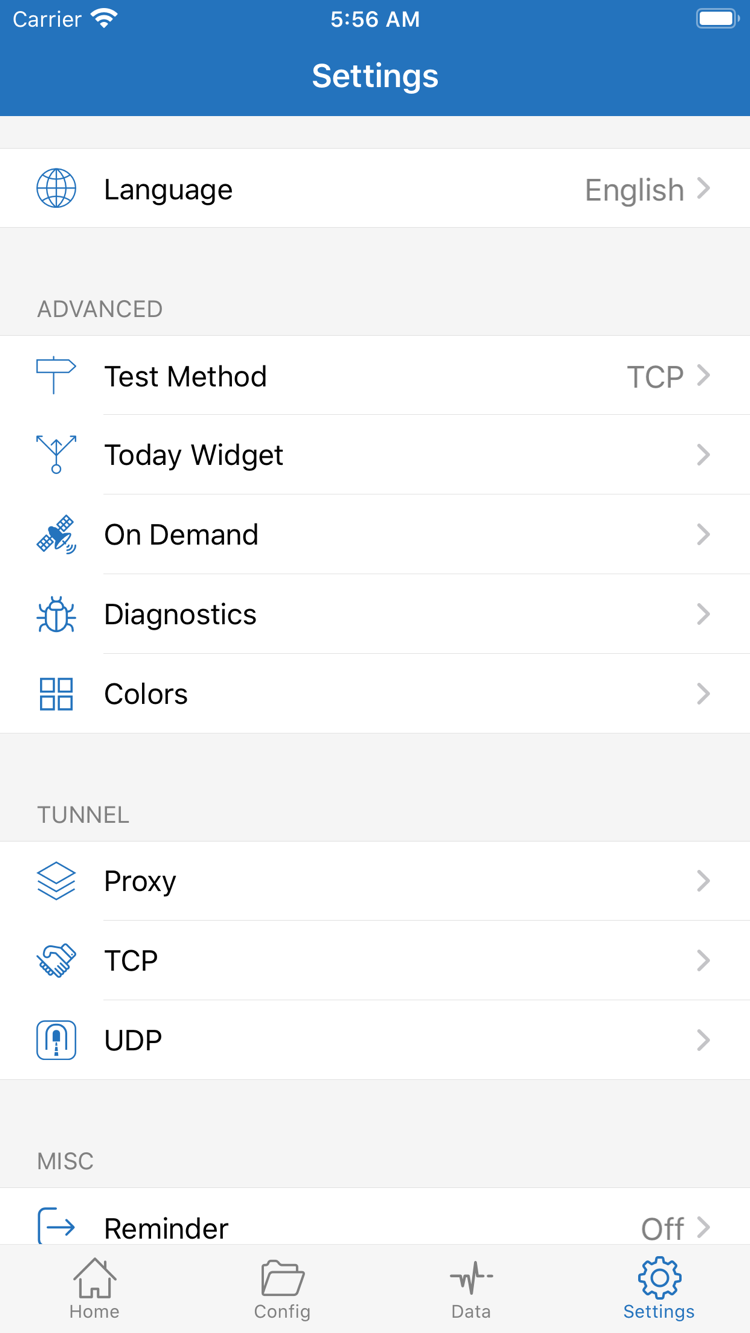
If the connection starts again after you turn it off manually, open Settings and check whether On Demand is enabled and whether it suits your current test. For more information, review the diagnostic items actually available under Diagnostics. The page may also show categories such as Proxy, TCP, and UDP. These are not a checklist of settings you must all change for your first connection. To troubleshoot, change only the items relevant to the issue and note their original values so you can restore them.
For a useful diagnostic record, note the step where the failure occurred, the selected mode, what Connectivity Test showed, and whether the actual destination was reachable. This is more helpful than simply saying “it won’t connect.” Before sharing anything, remove the full subscription URL, passwords, authentication identifiers, and QR codes; check screenshots for the same sensitive details. After fixing the issue, return to the verification steps and repeat the same checks. To learn more about configuration structure, match priority, and rule syntax, read the Rules Manual.